Find what you own and put it to use. Ask Xbar what you can build, what you can cook, or where you saved something. Inventory, recipes, projects and household profiles—all in one place. Talk naturally to Xbar about what you’ve used, and keep your inventory up to date.
Walk around your home adding things from your phone or tablet while your computer stays awake and runs Pragmatically.
Windows x64 · Included with Xbar
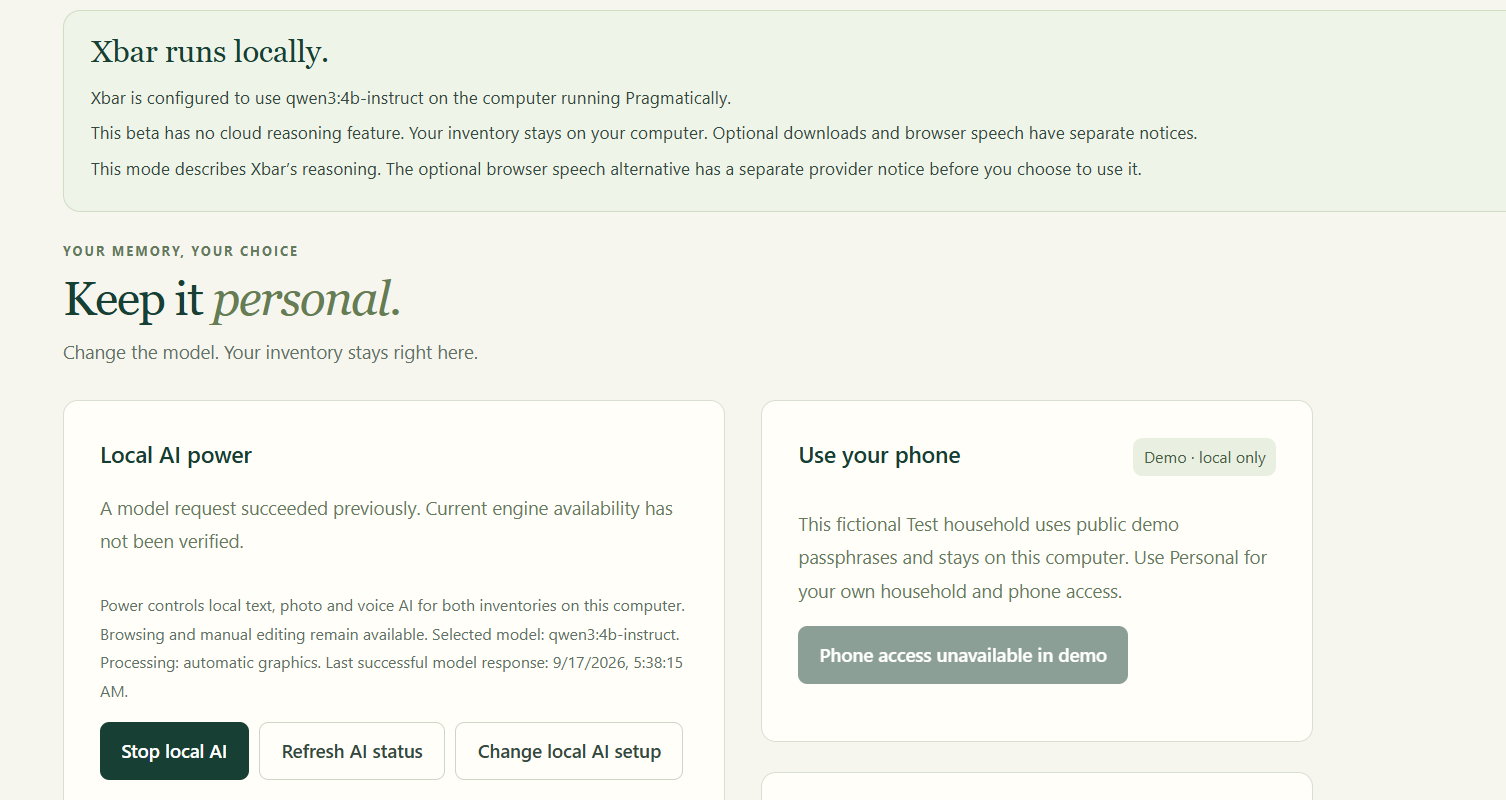
Local Whisper dictation turns speech into text on your host computer after local AI setup. Browser dictation is a separate option and may use an online speech provider.
How Pragmatically began
The idea began around 2023, when I was living in tight quarters with a lot of things and didn’t always know where everything was. I wanted to know what I had for a project—or what was in the fridge for a meal.
Pragmatically grew from that wish to connect people with the things they already own. Longer term, I want to bring people’s skills and materials together through Mega Projects, a future direction for voluntary collaboration.
Included with Xbar on Windows, with a choice of local AI models and item import. The Xbar suite installer is digitally signed. Import lets you review supported item records before adding them; it does not restore photos, history, recipes, projects, pets or settings.
This application remains in private development and testing. Pragmatically is included with the Xbar purchase. Interested in the work or a collaboration?
These are my launch prices. As I add features, prices will rise for new customers.
Your one-time purchase includes future updates and major-version upgrades released for the app you buy, at no extra charge. Upgrade eligibility has no time limit.
7-day refund policy: request a full refund within 7 days of purchase.
A LOOK INSIDE PRAGMATICALLY
Your space. At a glance.
Swipe or scroll to explore the examples.
SAVED PLACES. USEFUL DETAILS.
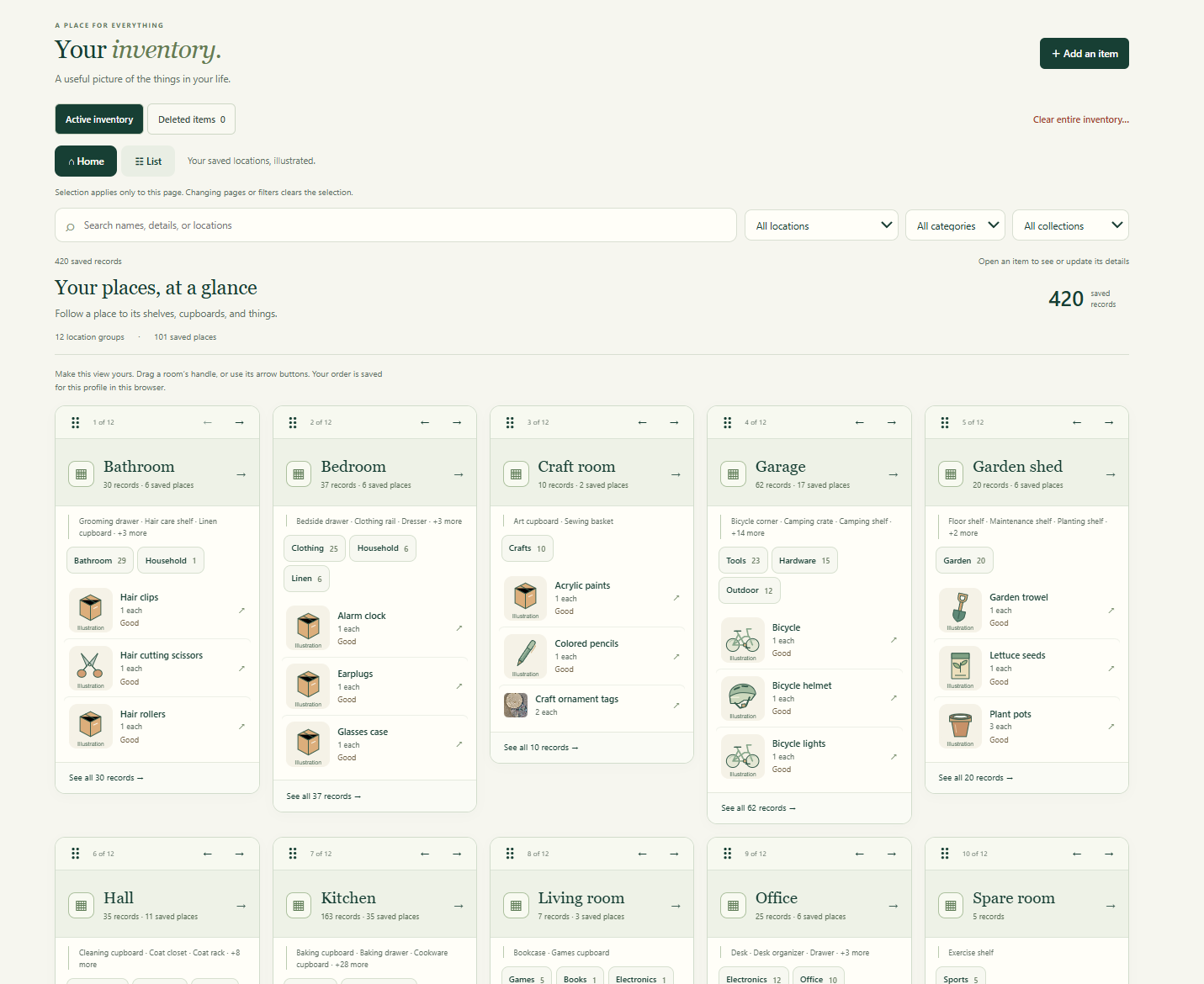
Your things, room by room.
Browse your saved inventory by room, then search or filter by location, category and collection.
Photo, text, barcode or local Whisper dictation. Let Xbar help turn what you own into a useful next step.
42-second motion walkthrough · no sound required
Read the explanation
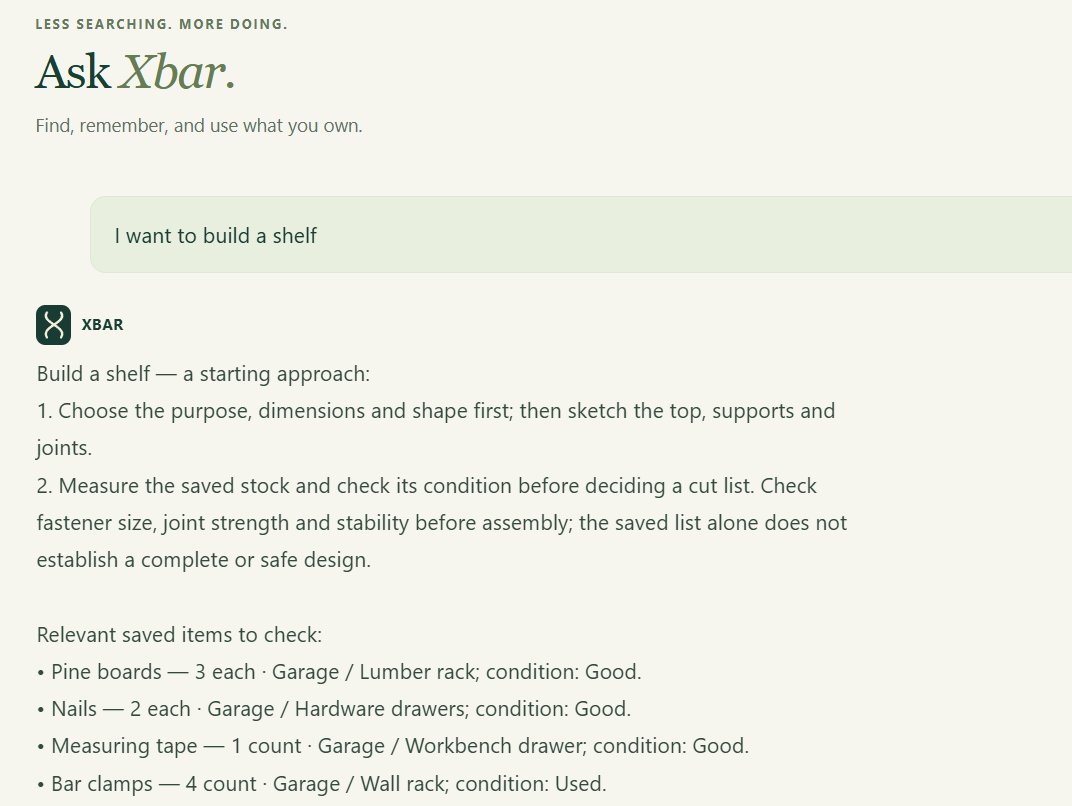
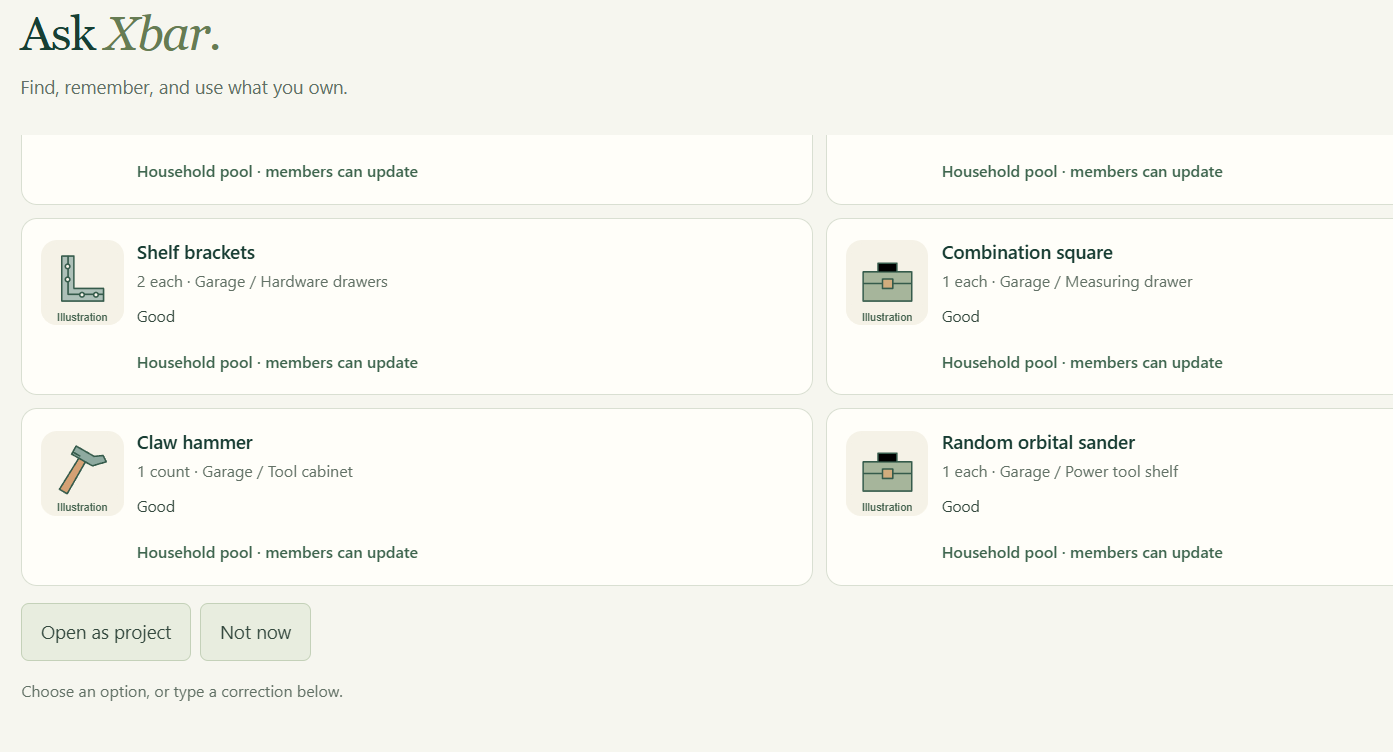
Add information by photo, text, barcode or local Whisper dictation. A photo can produce several separate item drafts. Review each name, quantity and location, then confirm what to save. Pair your phone or tablet with Personal inventory on the same trusted Wi-Fi and add things as you move around your home. Keep the host computer awake with Pragmatically running. Ask Xbar, “I want to build a desk.” It finds relevant saved boards, screws and tools, with their recorded locations, and offers to open a project. You choose the next step; linked records help you plan the work.
Recognition can miss or misidentify items. Scan a product barcode to check saved items and bundled product information, then review the match or enter the item yourself. Supported voice and photo features need their configured models; device and browser support varies. Saved locations are not live tracking. The animation illustrates a workflow rather than recording a live conversation.
EVERYDAY WORDS. UP-TO-DATE INVENTORY.
Used something? Just tell Xbar.
Talk naturally about what you drank, cooked or used for a project. Xbar connects what you say to your saved inventory, deducts the quantities you’ve used and keeps track of what’s left.
“I drank half the milk.”Record partial use and update how much is left.
“I cooked that recipe.”Use your saved recipe to account for its ingredients. Review the amounts before updating your inventory.
“I used two screws and one board.”Deduct the materials you used so your next project starts with current quantities.
AN IDEA → YOUR INVENTORY → A PROJECT
“I want to build a desk.”
Xbar finds the boards, screws and tools you have, with their saved quantities and locations. Open a project to keep those records, tasks and progress together.
Plan, share and finish a project
Add tasks and household collaborators. When finishing, review materials used; reusable tools stay in your inventory.
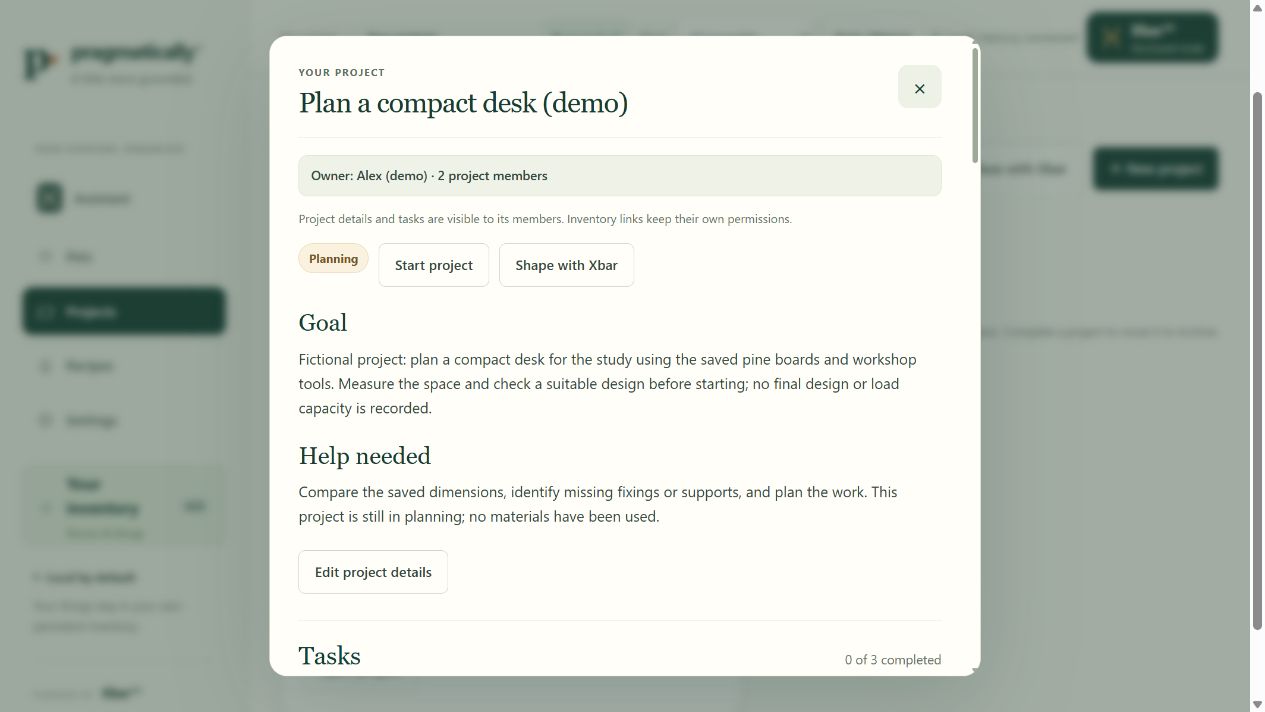
This demo desk project links six materials and tools, with three tasks shared by two household members.
See the desk project in the appA demo desk project brings its goal and planning questions together.
FROM “I’M HUNGRY” TO SOMETHING USEFUL
A meal starts with what’s in your kitchen.
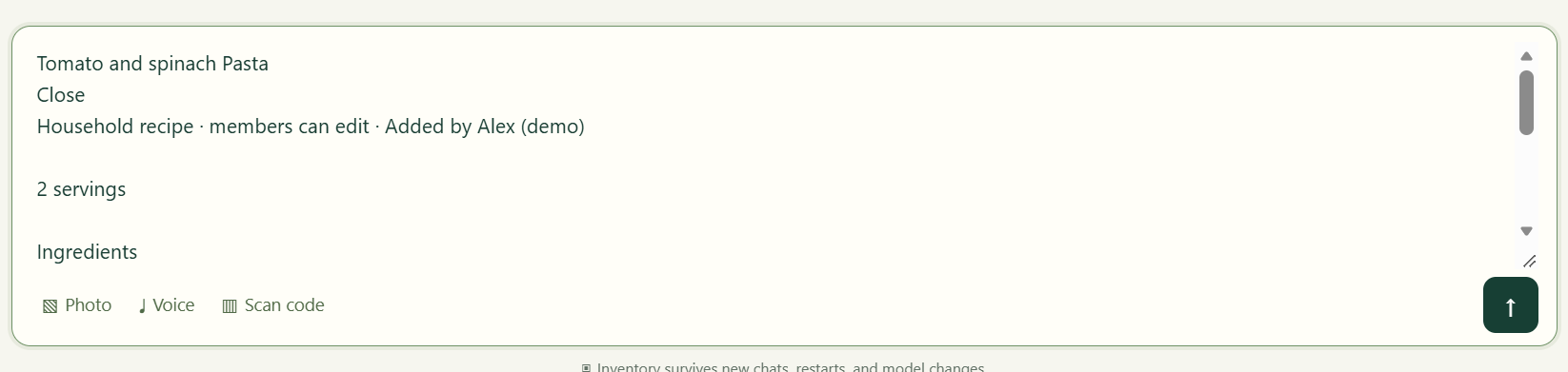
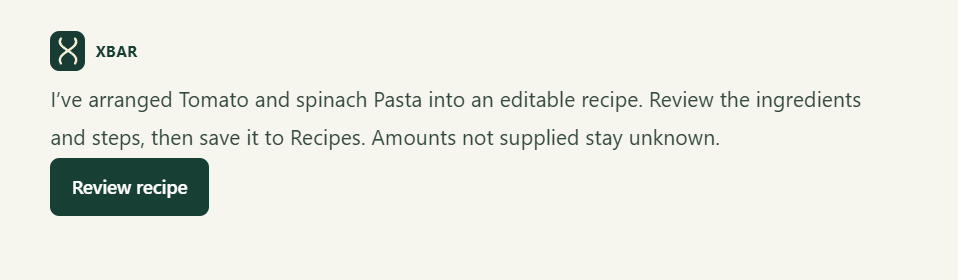
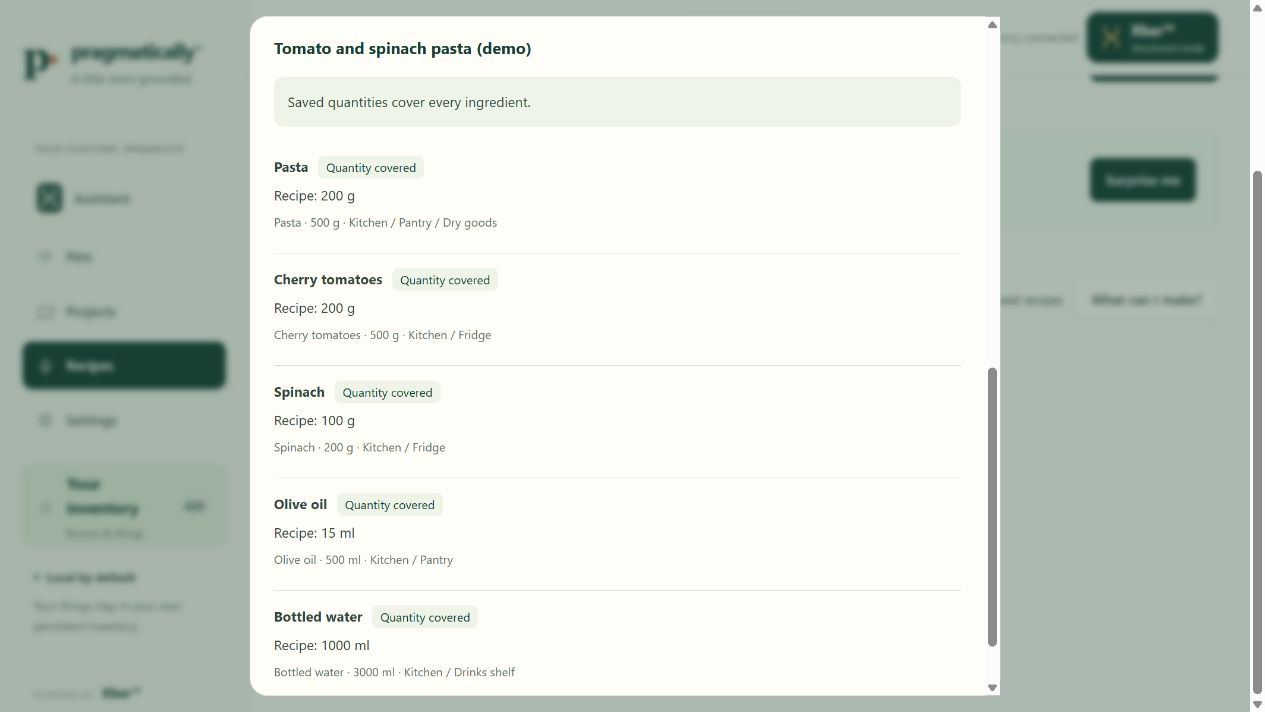
Paste a recipe as it is. Xbar turns the ingredients, quantities and instructions into an editable draft. Save it, then choose Check my ingredients to compare it with your inventory in one click.
Ask “I’m hungry.” Xbar suggests relevant recipes using your saved kitchen inventory.
More ways to plan a meal
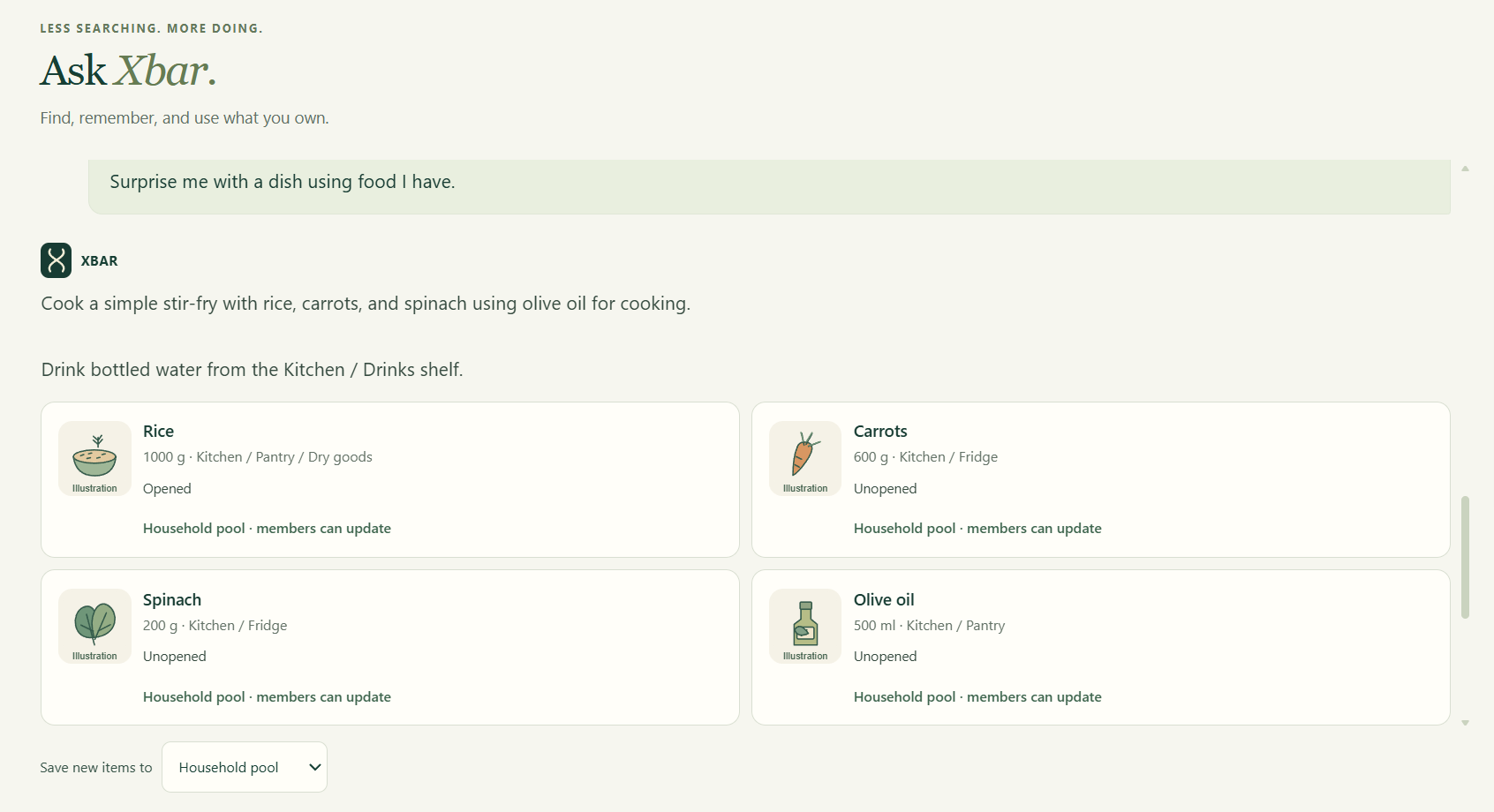
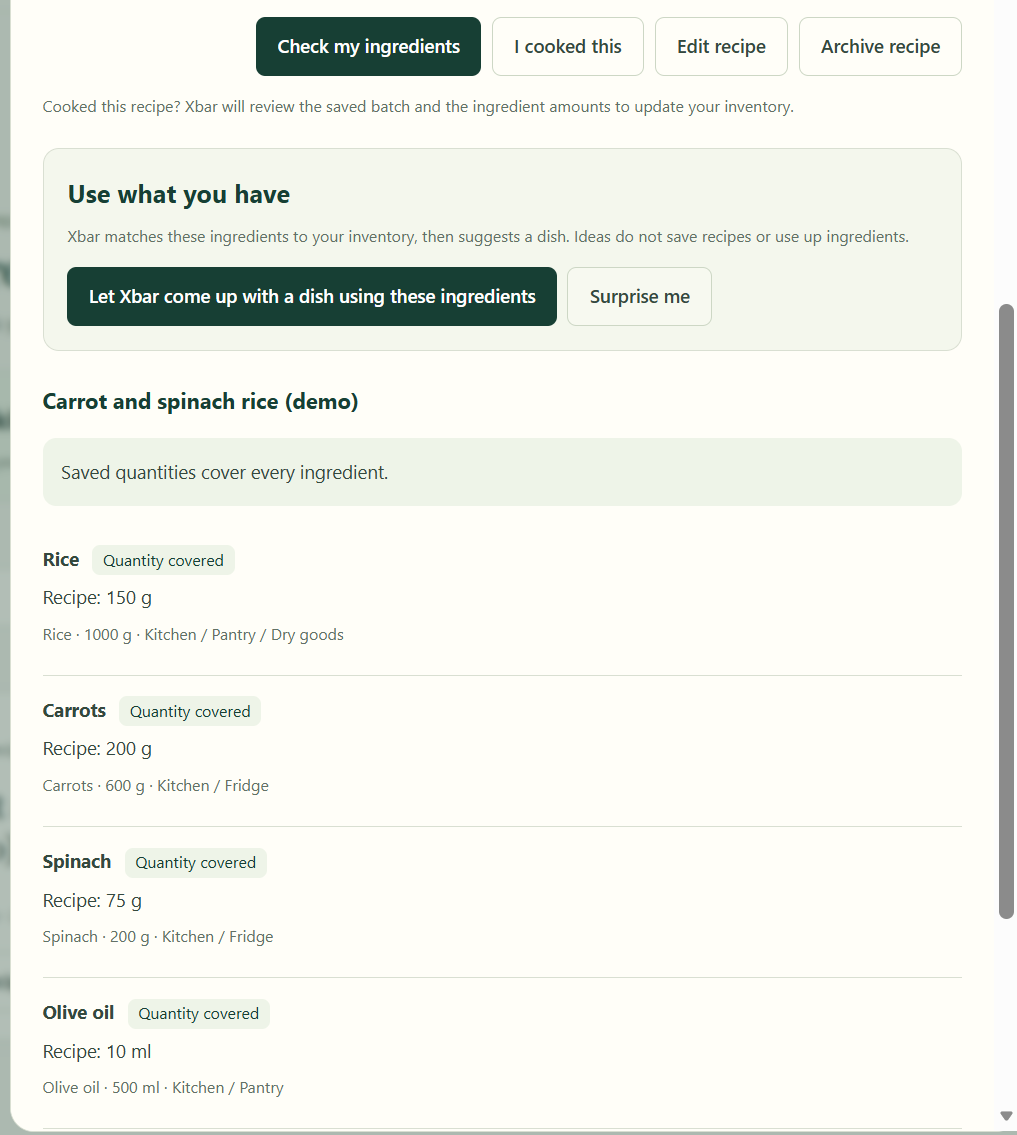
Start from a photo or notes, try Surprise me, or ask for a dish using your ingredients. See available quantities and missing matches. After cooking, use I cooked this to review amounts before updating your inventory.
24-second motion walkthrough: paste, review, check your ingredients, then ask what to cook. No sound needed.See recipes and ingredient checksCompare a recipe with saved ingredient quantities and locations.
DIFFERENT PEOPLE. ONE HOME.
A profile for you. A place for shared things.
Keep personal records private, or choose Household to share with signed-in members. Xbar and recipe checks use only the inventory that person can access.
How household sharing works
Switch profiles, choose where new records belong and manage trusted devices. Existing personal items stay private until you move them. Sharing a recipe does not share private possessions.
PET PROFILES
Meet Geode.
Your pets have a place in Pragmatically, too. Keep their names, photos and the details you want to remember in a dedicated profile.
Add notes and dated weight observations, and choose whether a profile belongs to you or your household.
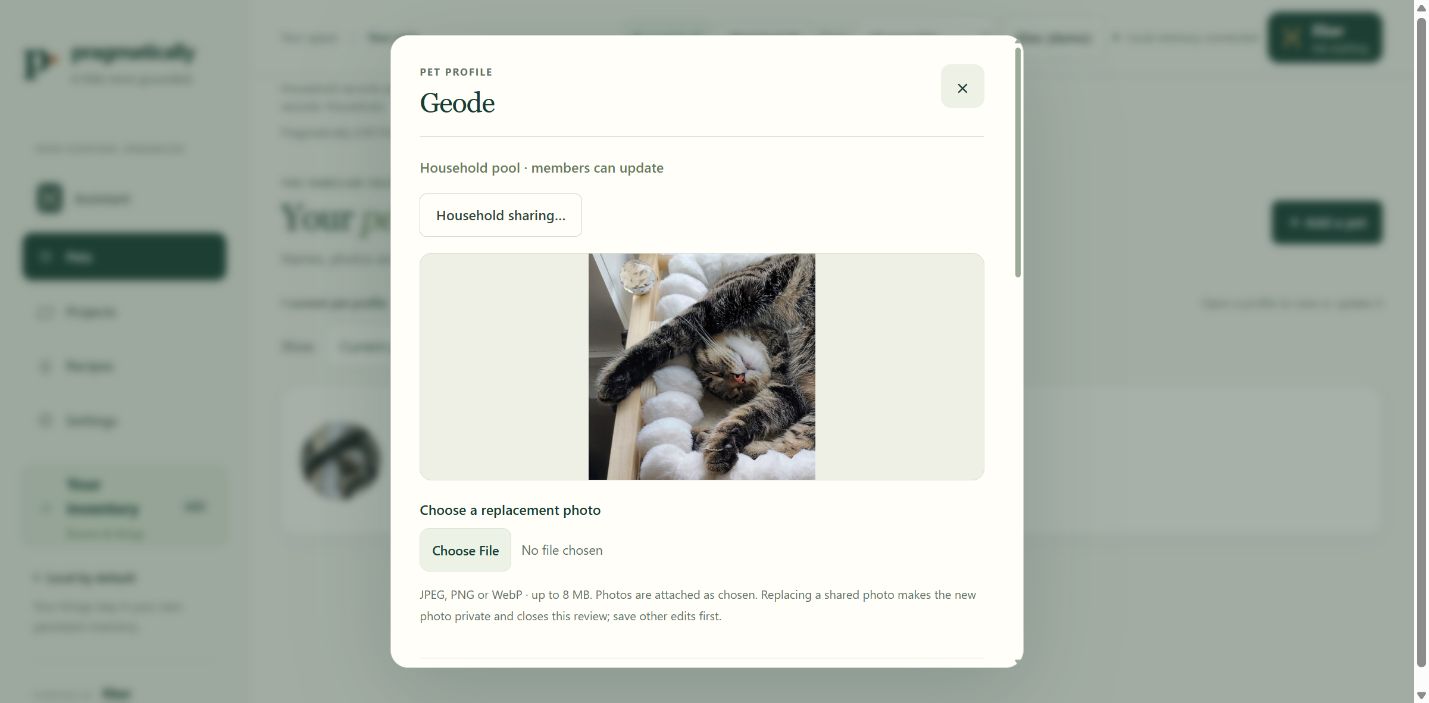
Geode, my cat, inspired the sample pet profile.
Geode’s photo in the pet profile, with household-sharing controls.
A PHOTO → A REVIEWED RECORD
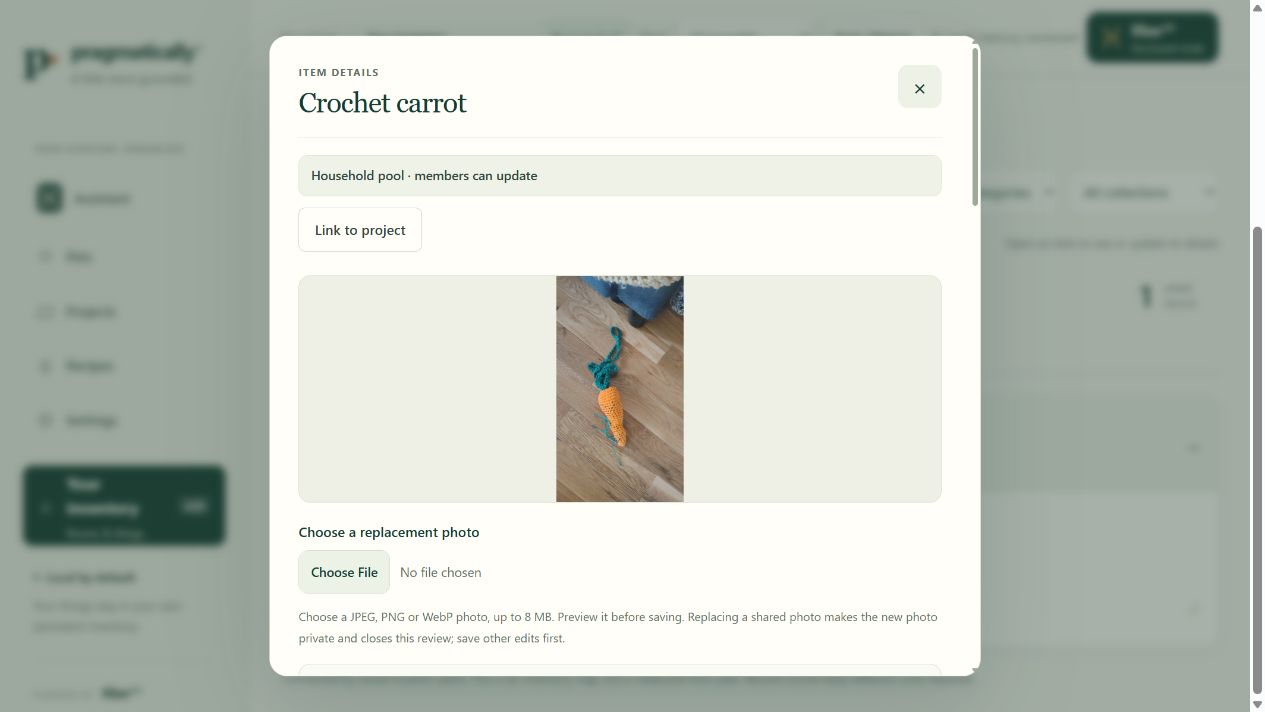
A carrot with a crafty twist.
This crochet carrot belongs with craft supplies. Its saved record keeps the original photo alongside its name, category and location.
Photo capture helps turn a picture into a draft you can review. Correct the details before saving, then return to the photo whenever you need it.
An earlier photo-identification example, preserved in the current demo as a reviewed crochet decoration. Its sample quantity and location are fictional.
See the saved crochet-carrot exampleThe saved crochet-carrot photo, attached to its demo inventory record.
THE EVERYDAY DETAILS, TOO
Capture it once. Keep it useful.
Add things your way
Use a note, supported voice capture, a photo, or a barcode. Review uncertain details before saving.
Browse your space
Explore rooms and places, search your items, and filter by location, category or collection.
Keep records current
Correct a location, change a quantity, record partial use, or attach your own item photo.
Keep your memory
Saved records survive fresh chats and app restarts. Deleted items can be restored.
YOUR COMPUTER POWERS IT. YOUR PHONE COMES WITH YOU.
Take Pragmatically around your home.
Walk from room to room with your phone or tablet. Add a photo or note, check what you have, and ask Xbar right where your things are.
STAYS AT HOMEYour computerAwake, with Pragmatically running
Same trusted Wi-Fi
COMES WITH YOUYour phone or tabletPaired to your Personal inventory
Open Pragmatically in your paired device’s browser. Your computer powers the inventory and local AI; its browser can be closed while Pragmatically keeps running. Phone access is available with Personal inventory. The fictional demo stays on the host computer.
OPTIONAL ASSISTANT CONNECTION · PRIVATE BETA
Check what you have. Even when you’re away.
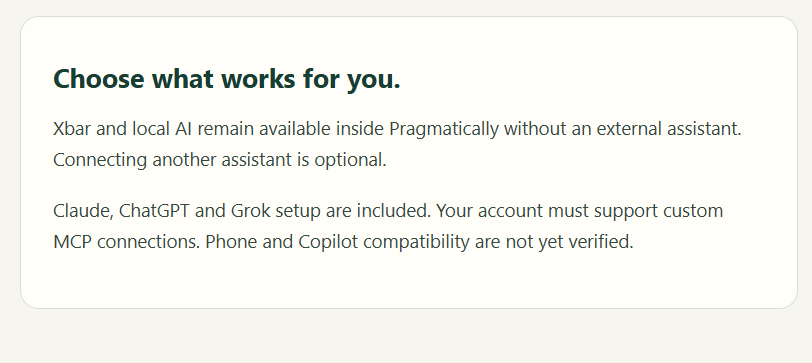
Connect a compatible Claude, ChatGPT or Grok account to your Pragmatically inventory through the optional MCP connection. Ask your chosen assistant what is in your fridge or whether you already own something when you are away from home. If you allow changes, you can also ask to add an item and review it before it is saved.
This is separate from the same-Wi-Fi phone browser access above. Your home computer must stay on, online and running Pragmatically. Xbar and local AI still work without an external assistant; the connection stays off until you choose to enable it.
“What’s in my fridge?”Check the food you recorded before you shop.
“Do I already have batteries?”Look up a saved item and its location from elsewhere.
“Add milk to the fridge.”Choose change access, then review the proposed addition before it is saved.
See the optional connection in PragmaticallyLocal Xbar remains available when the external connection is off.Choose read-only access or review and confirm changes.
Custom MCP support depends on your assistant account and client. The phone example below shows how to review an item and confirm the save. When connected, requested item details pass through Xbar’s connection service to the assistant provider; you can disconnect to stop future access.
FROM YOUR PHONE · PHOTO → CONFIRM → SAVE
A photo becomes a saved item.
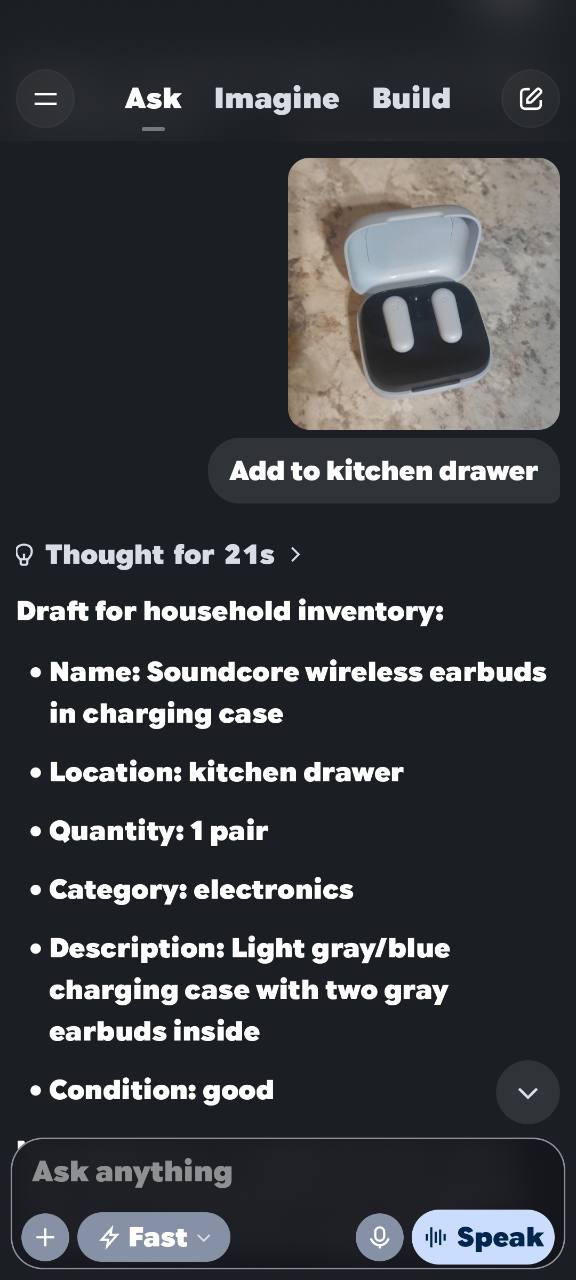
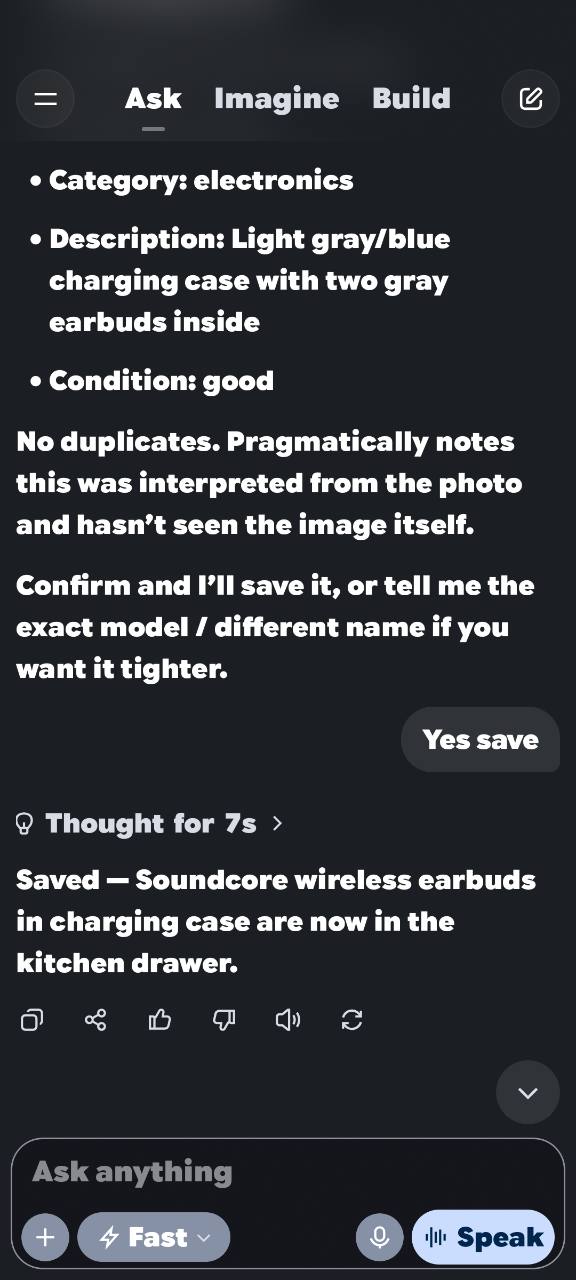
Send your connected assistant a photo and say where the item belongs. It describes the photo for Pragmatically and prepares an inventory draft for you to review.
In this phone example, “Add to kitchen drawer” creates a draft for a pair of earbuds. “Yes save” confirms the addition, and the assistant reports that the item is saved.
The photo is interpreted by the connected assistant; Pragmatically receives the item details. Connection support varies by assistant, account and device.
Review the draftA photo and a natural request become an item you can check.Confirm to saveThe item is added after you approve the proposed details.
Screenshots include demo records and examples from my own use. Saved locations are not live tracking. Suggestions depend on recorded information; check quantities, food suitability and practical project requirements.